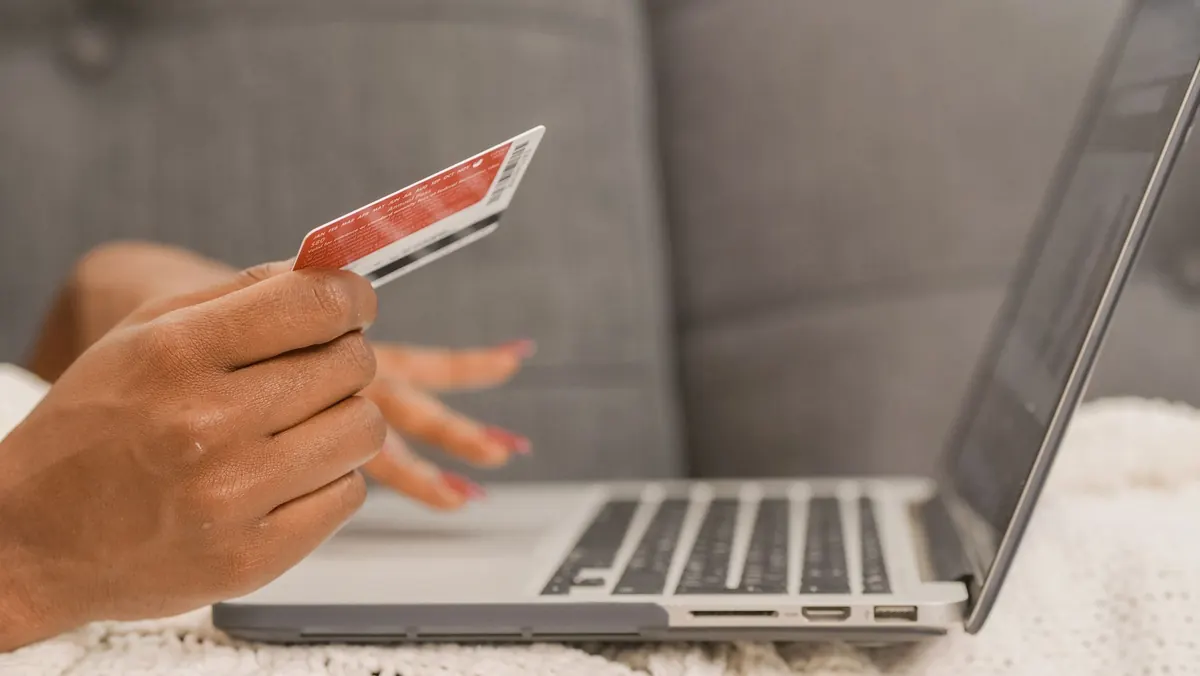
How to Set Up Two-Factor Authentication on Your Email, Bank, and Social Accounts in 30 Minutes
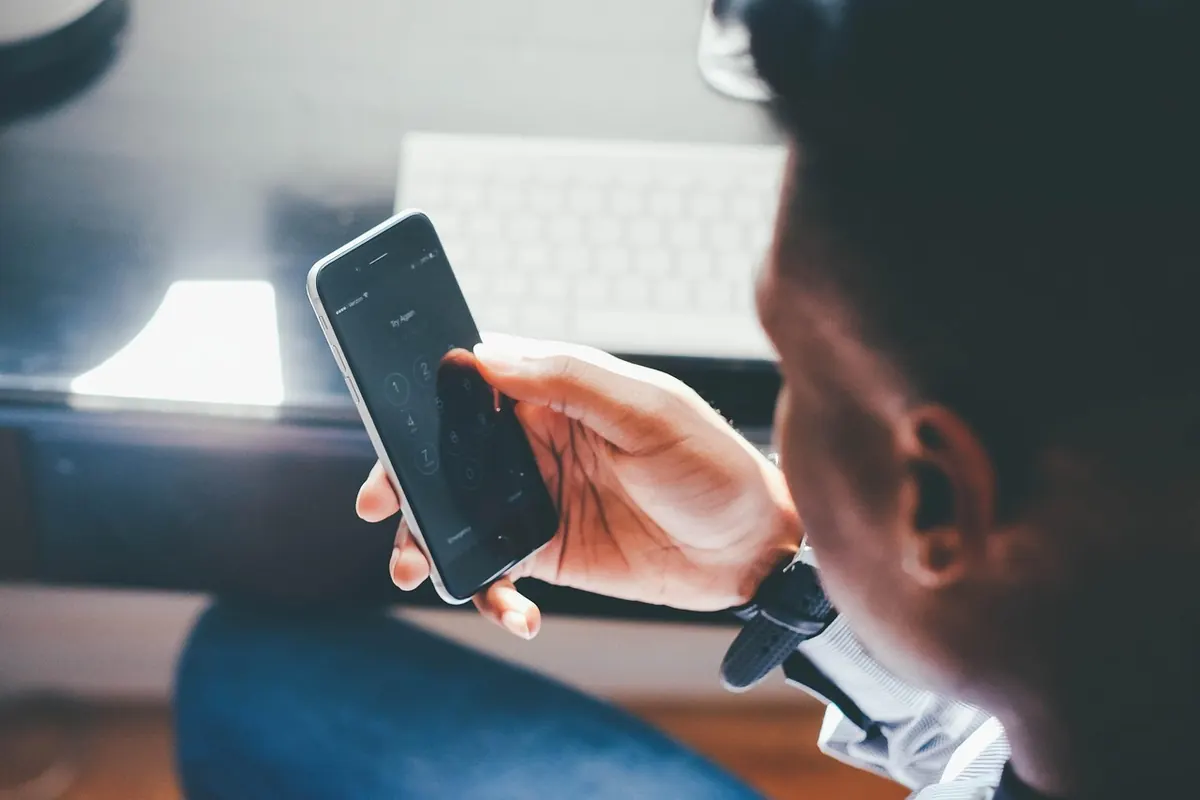
A password on its own is one guess away from failing. It gets reused, phished, or leaked in somebody else's breach, and then whoever holds it is you as far as your bank is concerned. Two-factor authentication adds a second, separate proof of identity: something you have, not just something you know. Doing this properly for your email, your money, and your social accounts takes about half an hour. Here's how to spend that half hour well.
Choose Your Second Factor Before You Touch a Settings Page
Most people install the first option they see. That's a mistake, because the methods differ a lot in how well they hold up against real attacks. Ranked from strongest to weakest:
- Hardware security key (FIDO2/WebAuthn). A small USB or NFC key you tap to log in. It cannot be phished, because it checks the actual website address before responding. Best option for your primary email if your provider supports it.
- Passkeys and built-in device authenticators. Effectively the same technology, stored in your phone or laptop and unlocked with your fingerprint or face.
- Authenticator app codes (TOTP). Six digits that rotate every 30 seconds. Works offline, widely supported, and a solid default for almost everything.
- Push notifications from an app. Convenient, but only as safe as your habit of reading the prompt. Attackers exploit this by spamming approvals until you tap one.
- SMS codes. Better than nothing, and still the weakest link. Codes can be intercepted, and phone numbers can be stolen through a SIM swap.
For most people the right answer is an authenticator app everywhere, plus a hardware key or passkey on your primary email. Use SMS only where a provider leaves you no choice.
Start With Your Primary Email
Identify the email address that receives password resets for everything else — usually your main Gmail, Outlook, or Apple account. If that inbox falls, every other account falls with it, because the attacker simply clicks "forgot password" everywhere else.
- Open your account's security settings. In Google: myaccount.google.com, then Security, then 2-Step Verification. In Microsoft: account.microsoft.com, then Security, then Advanced security options. Apple: Apple ID, then Sign-In & Security.
- Add your authenticator app first. Scan the QR code, then type the six-digit code it shows to confirm the pairing.
- Add a second method as a backup — a hardware key, a passkey on another device, or a printed code.
- Save the recovery codes before you close the page.
- Scroll to your active sessions and sign out of everything you don't recognize.
- Check your forwarding rules and filters while you're there. An unfamiliar rule that quietly forwards your mail is a classic sign that someone already has access.
Banks and Financial Accounts
Banks rarely use standard authenticator apps. Log into online banking and look for a Security or Login & Settings section; many now offer approval through their own mobile app, sometimes with the transaction details shown so you can confirm the amount and the payee. Turn that on.
If your bank offers only SMS, you can still raise the bar. Ask your mobile carrier to add a PIN or password to your account and, where available, a port freeze, so that moving your number to another SIM requires more than a convincing phone call. Turn on transaction alerts as well — an immediate text about a payment you didn't make is one of the fastest ways to catch fraud.
One habit matters more than any setting: never approve a login or payment prompt you didn't start. If your bank calls, hang up and dial the number printed on your card. If you share accounts with a partner or a bookkeeper, tell them before you change the login method so nobody gets locked out mid-month.
Social Accounts
Facebook and Instagram hide this under Settings, then Password and Security, then Two-Factor Authentication. X, LinkedIn, and TikTok put it in similar places. Pick an authenticator app over SMS wherever the platform allows it, and where you're offered several methods, add two.
Then do the cleanup that people skip. Review active sessions and log out of devices you no longer use — old phones, work laptops, a tablet you sold. Check which third-party apps have access to your account and revoke anything you don't recognize. Account takeovers on social platforms usually start with a reused password, then escalate through the email address attached to the profile, so protecting your inbox first pays off here.
Recovery Codes, Backups, and the Traps That Lock People Out
The most common way two-factor authentication goes wrong is that it locks out the person who set it up. A few habits prevent that.
- Store recovery codes outside your phone. A screenshot on the device you might lose is not a backup. Print them or write them down and keep them with your passport and other documents.
- Register a second device. A spare hardware key or an authenticator app on a tablet means a lost phone isn't a crisis.
- Know whether your authenticator app syncs. Some store codes only on the device, so a wiped phone means starting over with every recovery code you have.
- Update your phone number everywhere. A recycled number can end up in a stranger's hands and receive your reset messages.
- Expect push fatigue. If you get repeated approval prompts you didn't trigger, someone has your password. Don't approve anything, and change that password immediately.
- Test it. Sign out and back in once, while you still have your codes in front of you.
Your 30-Minute Plan
- Minutes 0–5: Install an authenticator app and write down the accounts that matter most, starting with your primary email.
- Minutes 5–15: Turn on two-factor for that email, add a backup method, and save the recovery codes.
- Minutes 15–20: Enable app-based approval or two-factor at your bank, and ask your carrier about a port freeze.
- Minutes 20–27: Do your main social accounts, then clear out old sessions and connected apps.
- Minutes 27–30: Put the recovery codes somewhere safe offline, and set a reminder to review everything in six months.
Two-factor authentication isn't unbeatable, and no single setting makes you invisible. What it does is move you out of the easy pile — the accounts a stolen password alone can open. That's a meaningful difference for thirty minutes of work, and it gets easier every time you do it.
Photo: Foundry / Pixabay